Use Orbis Studio as an MCP client
Orbis Studio integrates with the Model Context Protocol (MCP) as both an MCP server and an MCP client.
This page describes how to use Orbis Studio as an MCP client with the MCP Tools component and connected MCP servers.
For information about using Orbis Studio as an MCP server, see Use Orbis Studio as an MCP server.
Use the MCP tools component
The MCP Tools component connects to an MCP server so that a Orbis Studio agent can use the server's tools when responding to user queries.
Register MCP servers, and then add MCP Tools from the MCP sidebar as described in Connect to a non-Orbis Studio MCP server.
This component has two modes, depending on the type of server you want to access:
- Connect to a non-Orbis Studio MCP server with a JSON configuration file, server start command, or HTTP/SSE URL to access tools provided by external, non-Orbis Studio MCP servers.
- Connect to an Orbis Studio MCP server to use flows from your Orbis Studio projects as MCP tools.
Connect to a non-Orbis Studio MCP server
uvx is included with uv in the Orbis Studio package.
To use npx server commands, you must first install an LTS release of Node.js. If you run Orbis Studio in Docker, install Node.js inside the container image and rebuild so that npx-based MCP servers are available at runtime. For more information, see Package management.
For an example of an npx MCP server in Orbis Studio, see Connect an Astra DB MCP server to Orbis Studio.
The MCP Tools component is not listed as a draggable component under the Agents category. To add an MCP tool to a flow, do the following:
-
Register the MCP server. Open Settings → MCP Servers, and then click Add MCP Server, or click MCP in the flow editor’s left sidebar, and then click Add MCP Server.
-
Configure and save the server. Enter the connection details, and then click Save. For more information, see Use Orbis Studio as an MCP client.
-
In the MCP sidebar, drag the new server to the canvas. The MCP Tools component for that server is added to the canvas.
For more information, see Use Orbis Studio as an MCP client and Use Orbis Studio as an MCP server.
-
In the MCP Server field on the MCP Tools component, select the server you registered.
New servers are registered in Settings > MCP Servers, or in the MCP sidebar > Add MCP Server, using one of the following connection types:
- JSON: Paste the MCP server's JSON configuration object into the field, including required and optional parameters that you want to use, and then click Add Server.
- STDIO: Enter the MCP server's Name, Command, and any Arguments and Environment Variables the server uses, and then click Add Server.
For example, to start a Fetch server, the Command is
uvx mcp-server-fetch. - HTTP/SSE: Enter your MCP server's Name, URL, and any Headers and Environment Variables the server uses, and then click Add Server.
The default URL for Orbis Studio MCP servers is
http://localhost:7860/api/v1/mcp/project/PROJECT_ID/streamableorhttp://localhost:7860/api/v1/mcp/streamable. For more information, see Connect to an Orbis Studio MCP server.
-
To configure headers for your MCP server, enter each header in the Headers fields as key-value pairs. You can use global variables in header values by entering the global variable name as the header value. For more information, see Use global variables in MCP server headers.
If this server is nested inside an Orbis Studio flow that runs as an MCP server, you can propagate the incoming request's
x-api-keyorAuthorizationheader directly to this server at runtime. For more information, see Propagate x-api-key to nested MCP servers. -
To use environment variables in your server command, enter each variable in the Env fields as key-value pairs.
-
In the Tool field, select a tool that you want this component to use, or leave the field blank to allow access to all tools provided by the MCP server.
If you select a specific tool, you might need to configure additional tool-specific fields. For information about tool-specific fields, see your MCP server's documentation.
At this point, the MCP Tools component is serving a tool from the connected server, but nothing is using the tool. The next steps explain how to make the tool available to an Agent component so that the agent can use the tool in its responses.
-
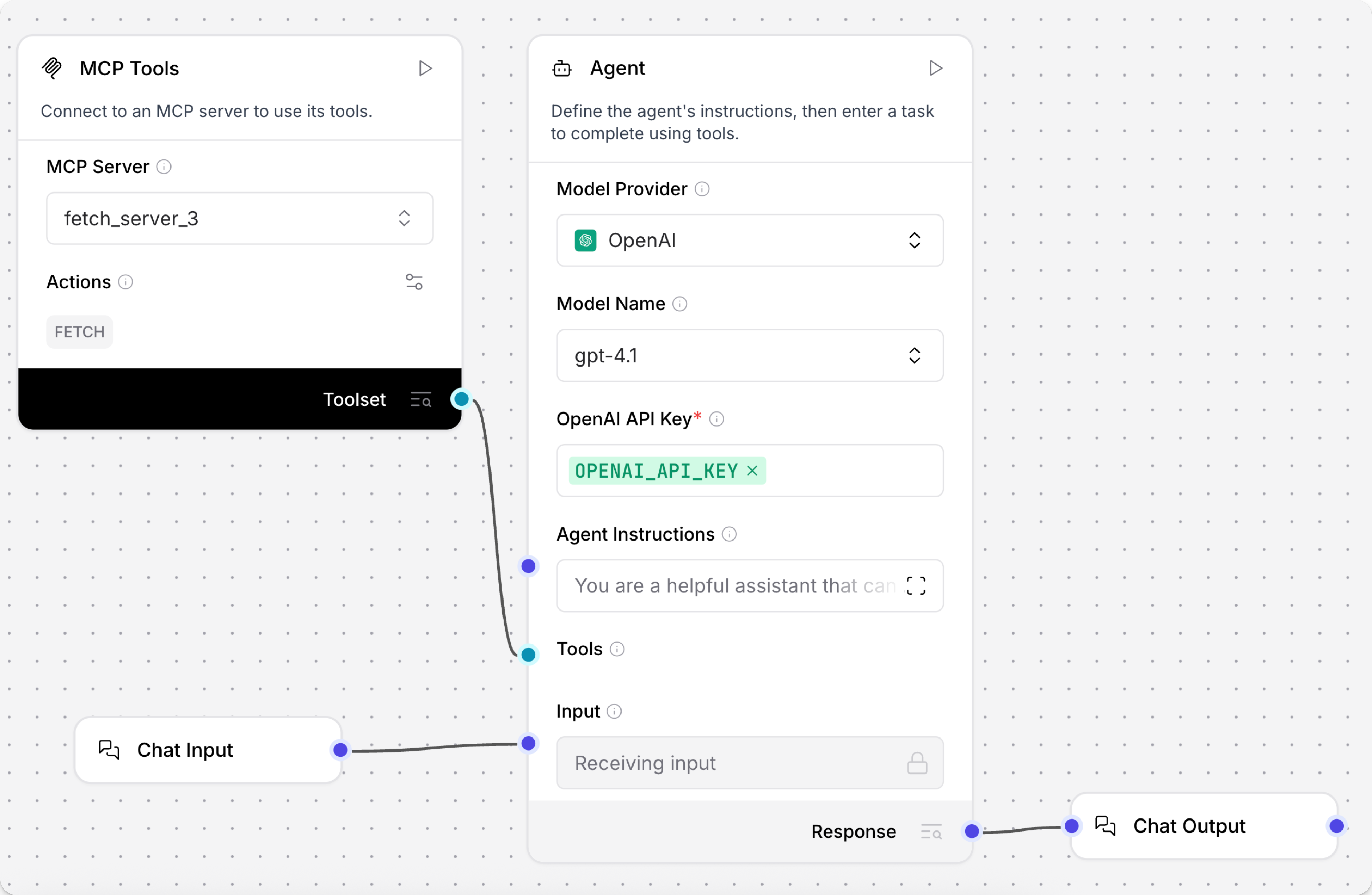
In the component's header menu, enable Tool mode so you can use the component with an agent.
-
Connect the MCP Tools component's Toolset port to an Agent component's Tools port.
If not already present in your flow, make sure you also attach Chat Input and Chat Output components to the Agent component.
-
Test your flow to make sure the MCP server is connected and the selected tool is used by the agent. Open the Playground, and then enter a prompt that uses the tool you connected through the MCP Tools component.
For example, if you use
mcp-server-fetchwith thefetchtool, you could ask the agent to summarize recent tech news. The agent calls the MCP server functionfetch, and then returns the response. -
If you want the agent to be able to use more tools, repeat these steps to add more tools components with different servers or tools.
Connect an Orbis Studio MCP server
Every Orbis Studio project runs a separate MCP server that exposes the project's flows as MCP tools. For more information about your projects' MCP servers, including exposing flows as MCP tools, see Use Orbis Studio as an MCP server.
Orbis Studio MCP servers support both the streamable HTTP transport and Server-Sent Events (SSE) as a fallback.
To leverage flows-as-tools, register your Orbis Studio MCP endpoint as a server first, and then add the MCP Tools component from the MCP sidebar.
-
Register the Orbis Studio MCP server. Open Settings > MCP Servers or the MCP section in the flow sidebar, click Add MCP Server, and select HTTP/SSE mode.
-
In the MCP URL field, enter your Orbis Studio server's MCP endpoint.
- For project-specific servers:
http://localhost:7860/api/v1/mcp/project/PROJECT_ID/streamable - For global MCP server:
http://localhost:7860/api/v1/mcp/streamable - Default for Orbis Studio Desktop:
http://localhost:7868/
All flows available from the targeted server are treated as tools. For authentication and project URLs, see Use Orbis Studio as an MCP server.
- For project-specific servers:
-
Save the server. When the connection succeeds, the server is stored and appears as a tile in the MCP sidebar.
-
Add the MCP Tools component to the flow.
-
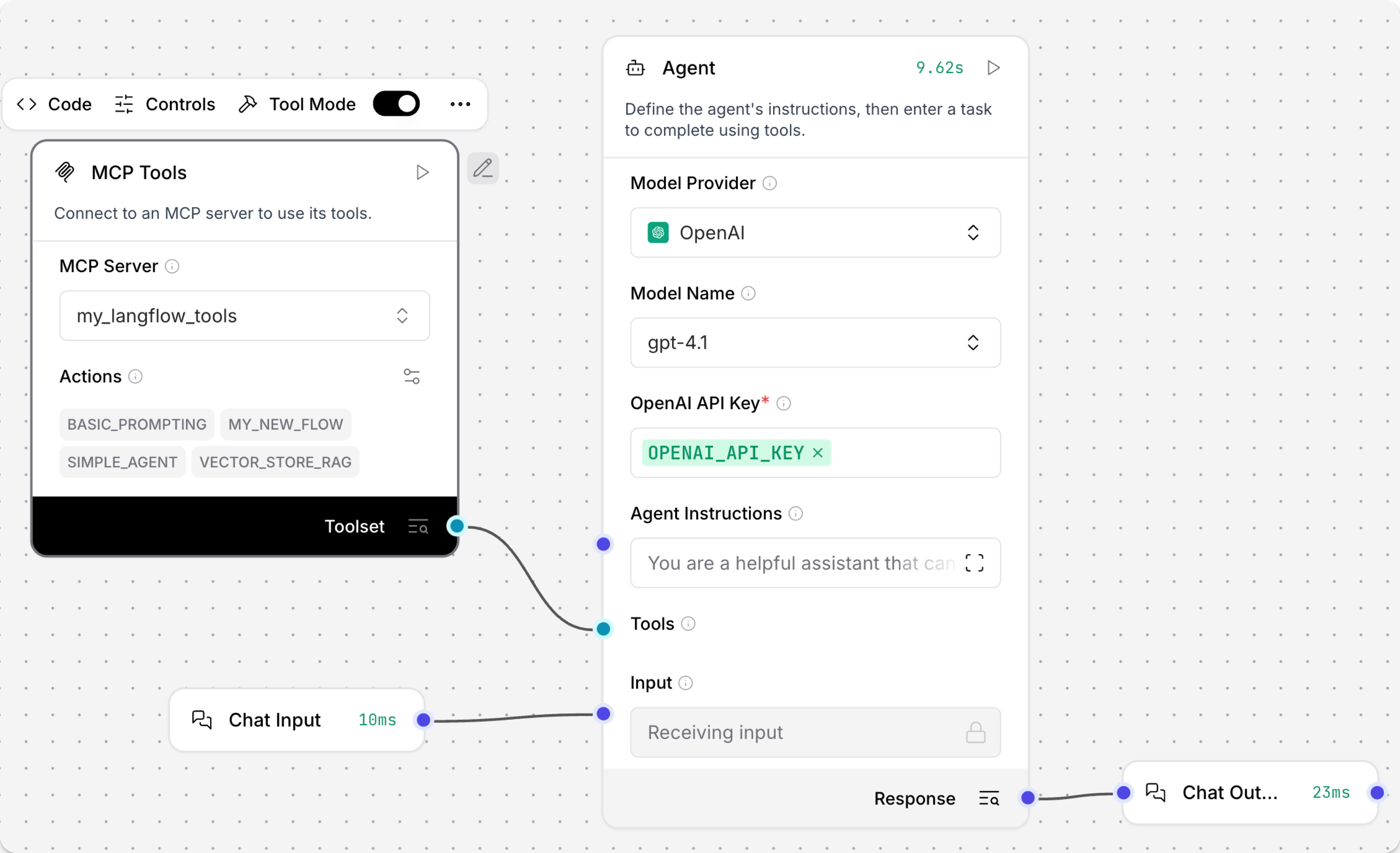
In the component's header menu, enable Tool Mode so you can use the component with an agent.
-
Connect the MCP Tools component's Toolset port to an Agent component's Tools port.
-
If not already present in your flow, make sure you also attach Chat Input and Chat Output components to the Agent component.
-
Test your flow to make sure the agent uses your flows to respond to queries. Open the Playground, and then enter a prompt that uses a flow that you connected through the MCP Tools component.
-
If you want the agent to be able to use more tools, repeat these steps to add more tools components with different servers or tools.
MCP Tools parameters
| Name | Type | Description |
|---|---|---|
| mcp_server | String | Input parameter. The MCP server to connect to. |
| tool | String | Input parameter. The specific tool to execute from the connected MCP server. Leave blank to allow access to all tools. |
| use_cache | Boolean | Input parameter. Enable caching of MCP server and tools to improve performance. Default: false. |
| verify_ssl | Boolean | Input parameter. Enable SSL certificate verification for HTTPS connections. Default: true. |
| response | Table | Output parameter. Table containing the response from the executed tool. |
Manage connected MCP servers
To manage MCP server connections for use in flows, open the MCP section in the visual editor, and then click Manage Servers, or click your profile icon, select Settings, and then click MCP Servers.
To add a new MCP server, click Add MCP Server, register the server, and then select the server on the MCP Tools component as described in Connect to a non-Orbis Studio MCP server.
Click More to edit or delete an MCP server connection.
If your Orbis Studio server administrator has locked MCP server management, you will receive a locked message when you try to add or modify servers. For more information, see Lock MCP server management.
Modify MCP server environment variables with the API
You can modify MCP server environment variables at runtime when running flows through the Orbis Studio API by tweaking the MCP Tools component.
You can include tweaks with any Orbis Studio API request that supports the tweaks parameter, such as POST requests to the /run or /webhook endpoints.
For more information, see Input schema (tweaks).
To modify the MCP Tools component's environment variables with tweaks, do the following:
-
Open the flow that contains your MCP Tools component.
-
To find the MCP Tools component's unique ID, in your MCP Tools component, click Controls. The component's ID is displayed in the Controls pane, such as
MCPTools-Bzahc. -
Send a POST request to the Orbis Studio server's
/runendpoint, and include tweaks to the MCP Tools component.The following examples demonstrate a request structure with the
envobject nested undermcp_serverin thetweakspayload:- Python
- TypeScript
- cURL
_32import requests_32import os_32_32ORBISAGENTS_SERVER_ADDRESS = "http://localhost:7860"_32FLOW_ID = "your-flow-id"_32ORBISAGENTS_API_KEY = os.getenv("ORBISAGENTS_API_KEY")_32MCP_TOOLS_COMPONENT_ID = "MCPTools-Bzahc"_32_32url = f"{ORBISAGENTS_SERVER_ADDRESS}/api/v1/run/{FLOW_ID}?stream=false"_32headers = {_32"Content-Type": "application/json",_32"x-api-key": ORBISAGENTS_API_KEY_32}_32payload = {_32"output_type": "chat",_32"input_type": "chat",_32"input_value": "What sales data is available to me?",_32"tweaks": {_32MCP_TOOLS_COMPONENT_ID: {_32"mcp_server": {_32"env": {_32"API_URL": "https://api.example.com",_32"API_KEY": "your-mcp-server-api-key",_32"ENVIRONMENT": "production"_32}_32}_32}_32}_32}_32_32response = requests.post(url, json=payload, headers=headers)_32print(response.json())_33const ORBISAGENTS_SERVER_ADDRESS = "http://localhost:7860";_33const FLOW_ID = "your-flow-id";_33const ORBISAGENTS_API_KEY = process.env.ORBISAGENTS_API_KEY || "";_33const MCP_TOOLS_COMPONENT_ID = "MCPTools-Bzahc";_33_33const url = `${ORBISAGENTS_SERVER_ADDRESS}/api/v1/run/${FLOW_ID}?stream=false`;_33_33const response = await fetch(url, {_33method: "POST",_33headers: {_33"Content-Type": "application/json",_33"x-api-key": ORBISAGENTS_API_KEY,_33},_33body: JSON.stringify({_33output_type: "chat",_33input_type: "chat",_33input_value: "What sales data is available to me?",_33tweaks: {_33[MCP_TOOLS_COMPONENT_ID]: {_33mcp_server: {_33env: {_33API_URL: "https://api.example.com",_33API_KEY: "your-mcp-server-api-key",_33ENVIRONMENT: "production",_33},_33},_33},_33},_33}),_33});_33_33const data = await response.json();_33console.log(data);_20curl --request POST \_20--url "http://ORBISAGENTS_SERVER_ADDRESS/api/v1/run/FLOW_ID?stream=false" \_20--header "Content-Type: application/json" \_20--header "x-api-key: ORBISAGENTS_API_KEY" \_20--data '{_20"output_type": "chat",_20"input_type": "chat",_20"input_value": "What sales data is available to me?",_20"tweaks": {_20"MCP_TOOLS_COMPONENT_ID": {_20"mcp_server": {_20"env": {_20"API_URL": "https://api.example.com",_20"API_KEY": "your-mcp-server-api-key",_20"ENVIRONMENT": "production"_20}_20}_20}_20}_20}'Replace
MCP_TOOLS_COMPONENT_ID,ORBISAGENTS_API_KEY,ORBISAGENTS_SERVER_ADDRESS, andFLOW_IDwith the actual values from your Orbis Studio deployment.Orbis Studio doesn't automatically discover or expose which environment variables your MCP server accepts from the MCP Tools component. To determine which environment variables your MCP server accepts, see the MCP server's documentation. For example, the Astra DB MCP server requires
ASTRA_DB_APPLICATION_TOKENandASTRA_DB_API_ENDPOINT, with an optional variable forASTRA_DB_KEYSPACE, as documented in its repository.
Use global variables in MCP server headers
You can use global variables in MCP server header values to securely store and reference API keys, authentication tokens, and other sensitive values. This is particularly useful for deployment scenarios where you need to pass user-specific credentials at runtime.
Enter a global variable name as the header value, and Orbis Studio resolves the global variable name to its actual value before making the MCP server request. Orbis Studio only passes the token value to your server; it doesn't validate tokens on behalf of your MCP server.
For example, to create a global variable named TEST_BEARER_TOKEN for MCP server bearer authentication, do the following:
-
To open the Global Variables pane, click your profile icon, select Settings, and then click Global Variables.
-
Create a Credential global variable named
TEST_BEARER_TOKEN. -
In the Value field, enter your MCP server's bearer token value. The value must include the
Bearerprefix with a space, for example:Bearer eyJhbG.... -
Click Save Variable.
-
To manage MCP server connections for your Orbis Studio client, click MCP servers, and then click Manage Servers, or click your profile icon, select Settings, and then click MCP Servers.
-
Click Add MCP Server.
-
Select the following:
- Name: test-mcp-server
- Streamable HTTP/SSE URL: Your MCP server's URL, such as
http://127.0.0.1:8000/mcp. - Headers: In the key field, enter the literal string
Authorization. For the key's value, enterTEST_BEARER_TOKEN, or the exact name of your global variable.
-
Click Create Server.
If the connection succeeds, Orbis Studio shows the number of tools exposed by the server.
After creating the server and global variable, you can connect to the server with the MCP Tools component, as explained in the next steps.
-
Add the MCP Tools component to a flow.
-
In the MCP Tools component, confirm the MCP Server is set to the server you created. The MCP server configuration already includes the headers you configured earlier, so no further configuration is needed in the component. The global variable
TEST_BEARER_TOKENis automatically resolved when the component makes requests to the MCP server. -
Optional: To override headers or add additional headers to the MCP Tools component, click the component to view the Headers parameter in the component inspection panel, and then add header key values. Headers configured in the component take precedence over the headers configured in the MCP server settings.
-
Test your flow to make sure the agent uses your server to respond to queries. Open the Playground, and then enter a prompt that uses a tool that you connected through the MCP Tools component.
Orbis Studio automatically resolves
TEST_BEARER_TOKENto its actual value before sending the request to the MCP server. When your MCP server receives the request, theAuthorizationheader contains the resolved token value.
Propagate x-api-key to nested MCP servers
When Orbis Studio runs as an MCP server and a flow contains an MCP Tools component that calls an external server, you can forward the outer client's x-api-key or Authorization header at runtime.
In the nested server's Headers config, set the key and value to the same header name, such as x-api-key and x-api-key.
Orbis Studio reads the matching header from the incoming request and substitutes it before calling the nested server.
If the incoming request does not include the configured header, the literal string is passed through unchanged.