Build flows and components with Orbis Studio Assistant
Orbis Studio Assistant is an in-app virtual assistant pane accessible from the canvas toolbar.
It can answer questions about the application and help you get more out of Orbis Studio.
Orbis Studio Assistant understands the structure of the Orbis Studio graph, so it can build flows or create components from natural language prompts.
Behind the scenes, Orbis Studio Assistant runs a built-in Orbis Studio flow on your Orbis Studio server each time you send a message. This flow is distinct from the flow that is open in the canvas, and has its own language model. The language model in Orbis Studio Assistant only has the currently opened flow in your workspace for context. To give Orbis Studio Assistant context for a different flow, switch to that flow in your workspace, and open Orbis Studio Assistant.
Prerequisites
- Connect an LLM provider in the Global model providers page for Orbis Studio Assistant to use
- Custom component creation must be enabled by your Orbis Studio administrator and permitted for your user role. Review the custom component environment settings with your administrator.
Create a custom component with Orbis Studio Assistant
In this example, you'll prompt Orbis Studio Assistant to create a custom component that validates and normalizes a list of URLs.
You'll then iterate on the code based on the results in the Playground.
-
In the canvas toolbar, open Orbis Studio Assistant. The Orbis Studio Assistant pane opens.
-
Optionally, ask
What can you help me with?for a list of Orbis Studio Assistant's capabilities. -
Prompt Orbis Studio Assistant to generate a custom component. For example:
_10Create a custom component URLTitleExtractor with:_10input: text_10output: list of {url, title, status}_10timeout handling + per-URL error handling_10clean docstring and typed methods.” -
Orbis Studio Assistant generates component code from your prompt. Because generation is model-driven, your code may differ from the example below.
Python component code
_124import html_124import re_124from typing import Any_124from urllib.error import HTTPError, URLError_124from urllib.request import Request, urlopen_124_124from lfx.custom import Component_124from lfx.io import FloatInput, MessageTextInput, Output_124from lfx.schema import DataFrame_124_124_124class URLTitleExtractor(Component):_124"""Extract URLs from text, fetch each page, and return URL/title/status rows."""_124_124display_name = "URLTitleExtractor"_124description = "Extracts URLs from input text and fetches page titles with per-URL status handling."_124icon = "Link"_124_124inputs = [_124MessageTextInput(_124name="text",_124display_name="Text",_124info="Text that may contain one or more URLs.",_124required=True,_124),_124FloatInput(_124name="timeout",_124display_name="Timeout",_124value=5.0,_124info="HTTP request timeout in seconds for each URL.",_124range_spec={"min": 0.1, "max": 60.0, "step": 0.1, "step_type": "float"},_124),_124]_124_124outputs = [_124Output(_124name="dataframe",_124display_name="DataFrame",_124method="build_dataframe",_124),_124]_124_124URL_PATTERN = re.compile(r"https?://[^\s<>\]\"'`{}|\\^]+", re.IGNORECASE)_124TITLE_PATTERN = re.compile(r"<title\b[^>]*>(.*?)</title>", re.IGNORECASE | re.DOTALL)_124_124def build_dataframe(self) -> DataFrame:_124"""Build a DataFrame containing URL, extracted title, and request status."""_124urls = self._extract_urls(self.text)_124rows = [self._process_url(url, self.timeout) for url in urls]_124return DataFrame(rows)_124_124def _extract_urls(self, text: str) -> list[str]:_124"""Extract unique URLs from text using a conservative regex."""_124if not text:_124return []_124_124matches = self.URL_PATTERN.findall(text)_124cleaned_urls: list[str] = []_124seen: set[str] = set()_124_124for url in matches:_124cleaned = url.rstrip(".,);:!?]}")_124if cleaned and cleaned not in seen:_124seen.add(cleaned)_124cleaned_urls.append(cleaned)_124_124return cleaned_urls_124_124def _process_url(self, url: str, timeout: float) -> dict[str, Any]:_124"""Fetch a URL and return a row with url, title, and status."""_124request = Request(_124url,_124headers={_124"User-Agent": "Mozilla/5.0 (compatible; Orbis Studio URLTitleExtractor/1.0)"_124},_124)_124_124try:_124with urlopen(request, timeout=float(timeout)) as response:_124status_code = getattr(response, "status", 200)_124content_bytes = response.read()_124content_type = response.headers.get_content_charset() or "utf-8"_124html_text = content_bytes.decode(content_type, errors="replace")_124title = self._extract_title(html_text)_124return {"url": url, "title": title, "status": str(status_code)}_124_124except HTTPError as exc:_124title = ""_124try:_124body = exc.read()_124charset = exc.headers.get_content_charset() if exc.headers else None_124if body:_124html_text = body.decode(charset or "utf-8", errors="replace")_124title = self._extract_title(html_text)_124except Exception:_124title = ""_124return {"url": url, "title": title, "status": str(exc.code)}_124_124except TimeoutError:_124return {"url": url, "title": "", "status": "timeout"}_124_124except URLError as exc:_124reason = getattr(exc, "reason", None)_124if isinstance(reason, TimeoutError):_124status = "timeout"_124else:_124status = "request_error"_124return {"url": url, "title": "", "status": status}_124_124except Exception:_124return {"url": url, "title": "", "status": "request_error"}_124_124def _extract_title(self, html_text: str) -> str:_124"""Extract and normalize the HTML title from a document string."""_124if not html_text:_124return ""_124_124match = self.TITLE_PATTERN.search(html_text)_124if not match:_124return ""_124_124title = html.unescape(match.group(1))_124title = re.sub(r"\s+", " ", title).strip()_124return titleTo inspect the code, click View Code. To add the component to the canvas, click Add to Canvas.
-
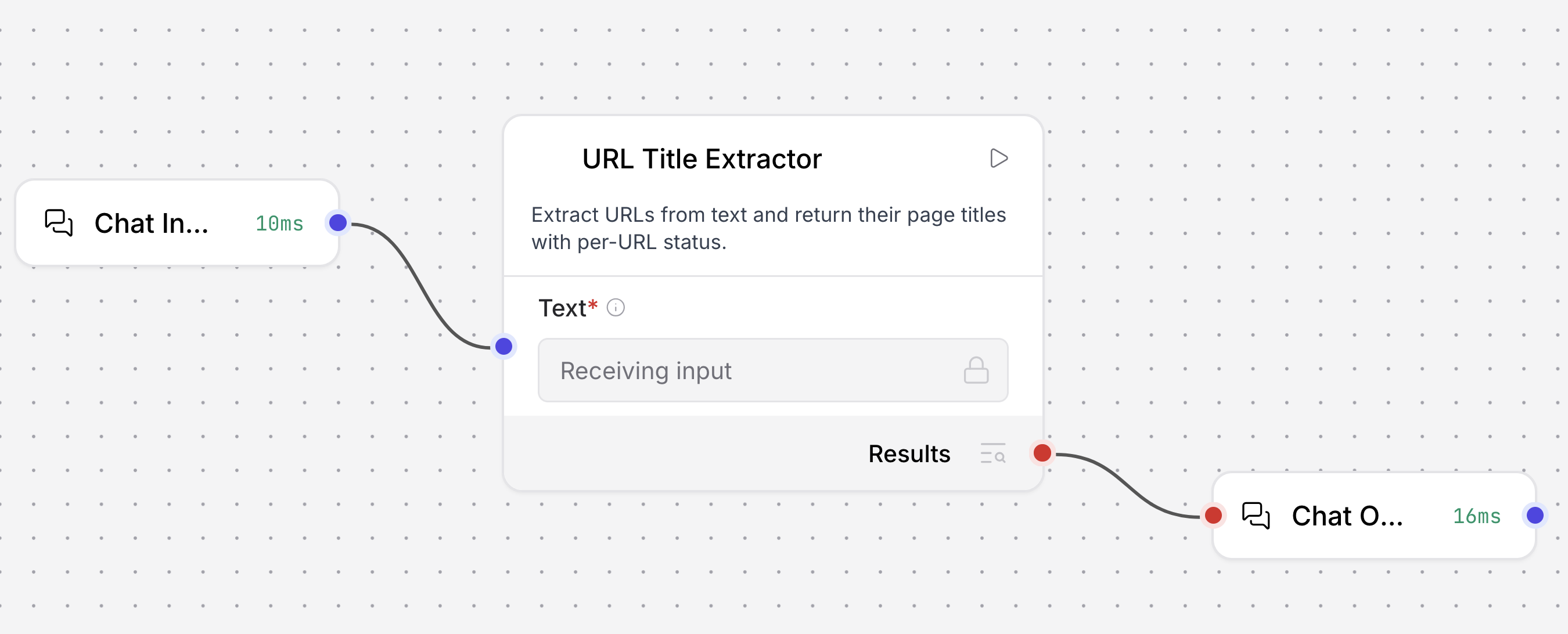
Connect the component to Chat Input and Chat Output components. At this point your flow has three connected components:
- Chat Input sends the text that contains URLs into the URLTitleExtractor so the flow runs when you chat in the Playground or send a prompt from an app.
- URLTitleExtractor reads that text, finds URLs, fetches each page, and outputs a Table with
url,title, andstatuscolumns. - Chat Output receives URLTitleExtractor's result and displays the Table back to the user or calling application.
-
Open the Playground, and tell Orbis Studio to check a list of URLs. For example:
_10Check these links: https://orbislabs.ai_10https://orbislabs.ai_10https://python.org_10https://this-domain-should-not-resolve-12345.invalid -
Run the flow. The output will be similar to the following, with a Table with one row per URL, including page titles and status codes.
url title status https://orbislabs.ai Orbis Studio | Low-code AI builder for agentic and RAG applications 200 https://orbislabs.ai Orbis Studio - AI agent and workflow platform 200 https://python.org Welcome to Python.org 200 https://this-domain-should-not-resolve-12345.invalid -
To iterate further, tell Orbis Studio Assistant what you want. For example, prompt it to
Update URLTitleExtractor to add max_urls (default 5) and skip duplicates..Orbis Studio Assistant generates an updated URLTitleExtractor component (again, the exact code may differ from a previous run).
-
Replace the old component with the new component. Set max_urls to
3. In the Playground, enter a list that includes a duplicate URL and the invalid URL from before:_10Check these links: https://orbislabs.ai_10https://orbislabs.ai_10https://python.org_10https://orbislabs.ai_10https://this-domain-should-not-resolve-12345.invalid -
Run the flow. The output will be similar to the following, with the duplicate
https://orbislabs.airemoved and only 3 valid URLs displayed.url title status https://orbislabs.ai Orbis Studio | Low-code AI builder for agentic and RAG applications 200 https://orbislabs.ai Orbis Studio - AI agent and workflow platform 200 https://python.org Welcome to Python.org 200
Build an agent flow with Orbis Studio Assistant
Building a flow reads and writes the entire Orbis Studio graph on every turn, which can use significantly more tokens than single-component generation.
In addition to generating individual components, Orbis Studio Assistant can create a flow from a single prompt.
Continuing from the Create a custom component with Orbis Studio Assistant example, ask Orbis Studio Assistant to build a simple agent flow that uses the URLTitleExtractor custom component as a tool.
-
With the URLTitleExtractor component still on the canvas, open Orbis Studio Assistant and prompt it to build the agent flow:
_10Build a simple agent flow using the URLTitleExtractor custom component as a tool. -
Orbis Studio Assistant presents a diagram of the flow it is proposing. To approve, click Add to Canvas.
Orbis Studio Assistant adds an Agent component, connects the URLTitleExtractor to its Tools input, and connects Chat Input and Chat Output to complete the flow. Flow generation is model-driven, so the exact wiring may differ from this example.
-
To iterate, describe changes to Orbis Studio Assistant, and then click Replace canvas to replace the entire flow currently on the canvas. For example:
_10Connect the URLTitleExtractor component's Toolset port to the Agent's Tools port. -
Open the Playground and ask the agent to check a URL:
_10What is the title of the page at https://orbislabs.ai?The agent uses the URLTitleExtractor tool to fetch the page and return the title.
-
Orbis Studio Assistant can further iterate on the flow, or answer questions about Orbis Studio. For example, ask Orbis Studio Assistant
How do I send an API request to chat with this flow in Python?The response includes a request sourced from the Orbis Studio documentation that you can copy and paste into your application.
Reference canvas components in your prompts
Reference components and their fields directly in an Orbis Studio Assistant prompt using the @ and . selectors.
In the Orbis Studio Assistant prompt input, enter @ to list all available components, and then select a component to insert its reference.
To select a specific field within a component, enter . after the component.
For example, to prompt Orbis Studio Assistant to update the system prompt field on an Agent component, enter the following:
_10Update @Agent.System Prompt to always respond in bullet points.